This blog is the continuation of Ansible with DellEMC storage multi-part blog.
In the last (6th Part) of this blog series, we discussed how to prepare Ansible Tower/AWX with Dell EMC storage credentials.
In this blog post, we will install Dell EMC PowerStore collection on Ansible AWX and go through the next steps.
As we all know that Ansible has moved to Collections – a new ways of managing integrations and content management. Dell EMC has already started working towards this and have released several collections for multiple Dell EMC portfolio products, few of which are listed below.
- Dell EMC Ansible Modules collections for
Apart from this list you can find other Dell portfolio collections (like OpenManage) on this link
For the scope of this blog post we will focus on installing Dell EMC PowerStore Ansible collection on Ansible AWX. Technically, all the collections can be installed using similar steps.
As a Pre-Requisite, this blog post assumes that you have –
- Ansible AWX installed and running
- Access to operating system / machine having Ansible AWX installed
- Access to PowerStore storage system (with credentials)
Additionally, if you’re getting started with Ansible AWX and/or integration with Dell EMC’s storage products then you can follow this blog series to get started from scratch.
As part of the installation collection installation steps we need to Ansible AWX machine and then connect to the awx_task docker container.
Login to the AWX machine. You can list the running AWX containers using below command
[root@awx ~]# docker container list
CONTAINER ID        IMAGE                     COMMAND                  CREATED             STATUS              PORTS                  NAMES
6ced2eccbd7b        ansible/awx_task:11.2.0   "tini -- /bin/sh -c …"   13 months ago       Up 6 days           8052/tcp               awx_task
42b14fbd15ad        ansible/awx_web:11.2.0    "tini -- /bin/sh -c …"   13 months ago       Up 6 days           0.0.0.0:80->8052/tcp   awx_web
4c08c0e39128        memcached:alpine          "docker-entrypoint.s…"   13 months ago       Up 6 days           11211/tcp              awx_memcached
42224676c21a        redis                     "docker-entrypoint.s…"   13 months ago       Up 6 days           6379/tcp               awx_redis
37d0ca0c67bc        postgres:10               "docker-entrypoint.s…"   13 months ago       Up 6 days           5432/tcp               awx_postgres
Then connect to the awx_task container using below command
# docker exec -it awx_task bashNext, install the PowerStore Ansible Modules collection in awx_task container
# ansible-galaxy collection install dellemc.powerstore
Process install dependency map
Starting collection install process
Installing 'dellemc.powerstore:1.2.1' to '/home/awx/.ansible/collections/ansible_collections/dellemc/powerstore'
Then logout from the container.
bash-4.4# exitNow you have successfully installed the Dell EMC PowerStore Ansible Modules collection. Next step post installing collection are
- Create the PowerStore credentials on the Ansible AWX
- For credentials creation you can follow our earlier blog post
- Create PowerStore Project – assuming you’ve PowerStore playbooks on content repo (like Git)
- Configure Ansible AWX Job template / Workflow template for storage task automation
All Dell EMC’s published collections comes with sample playbooks to test the functionality and also to get you started with integrations. When it comes to PowerStore you can see them under /home/awx/ansible-powerstore/dellemc_ansible/powerstore/samples directory
# cd /home/awx/ansible-powerstore/dellemc_ansible/powerstore/samples
# ls -l
-rw-r--r-- 1 root root 1892 Jun  4  2020 capacity_volumes.yml
-rw-r--r-- 1 root root 1042 Jun  4  2020 create_multiple_volumes_async.yml
-rw-r--r-- 1 root root  799 Jun  4  2020 create_multiple_volumes.yml
-rw-r--r-- 1 root root  790 Jun  4  2020 delete_multiple_volumes.yml
-rw-r--r-- 1 root root 1710 Jun  4  2020 find_empty_volume_groups.yml
-rw-r--r-- 1 root root 1141 Jun  4  2020 search_volumes.yml
You can re-use these sample playbooks to quickly get started with storage automation tasks. Sample playbooks in the collection has multiple variables like –
- array_ip
- user
- password
- verifycert
You can capture the storage credentials by creating Dell EMC storage credential type (screenshot below)

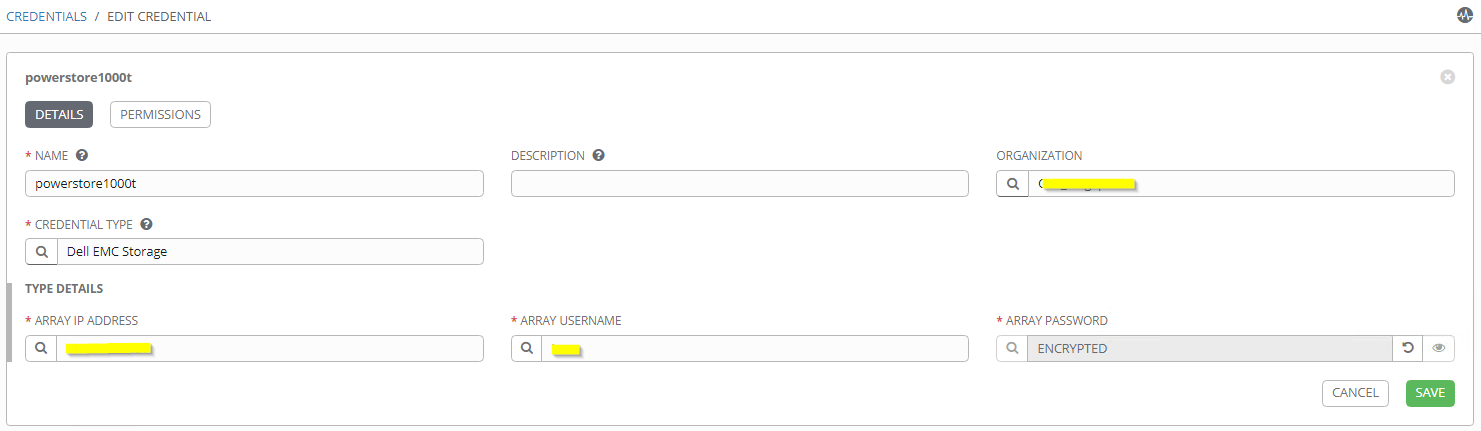
Once Dell Storage credential type is created then you can add PowerStore array details and credentials using AWX credential manager.

After adding PowerStore credential you can use the same in the AWX automation job template creation. Additional variables (like volume names, size, host etc.) can be captured using extra_vars

Additionally you can create survey to capture the required variables and also workflow visualizer to create multi-step breakdown of the automation tasks including but not limited storage automation. Below is the example of breaking down the storage provisioning workflow in the logical steps (like approval, quota management, provisioning, etc.)

Hope this helps everyone.
Update: Please note that the latest version of AWX has moved to Kubernetes (instead of Docker). Please use the below steps to install the PowerStore modules.
[root@awx ~]# kubectl -n awx exec -it awx-844c574f84-bc4ww -c awx-ee -- /bin/bash
bash-4.4$ ansible-galaxy collection install dellemc.powerstore -c
Starting galaxy collection install process
Process install dependency map
Starting collection install process
Downloading https://galaxy.ansible.com/download/dellemc-powerstore-1.6.0.tar.gz to /home/runner/.ansible/tmp/ansible-local-3648wbuk4c_/tmprzm8bse6/dellemc-powerstore-1.6.0-ltamh_71
Installing 'dellemc.powerstore:1.6.0' to '/home/runner/.ansible/collections/ansible_collections/dellemc/powerstore'
dellemc.powerstore:1.6.0 was installed successfully
bash-4.4$


