Tag: Unity

  • Ansible with DellEMC Storage: Part 7 – Install PowerStore Collection on AWX/Tower

    Ansible with DellEMC Storage: Part 7 – Install PowerStore Collection on AWX/Tower

    This blog is the continuation of Ansible with DellEMC storage multi-part blog.

    In the last (6th Part) of this blog series, we discussed how to prepare Ansible Tower/AWX with Dell EMC storage credentials.

    In this blog post, we will install Dell EMC PowerStore collection on Ansible AWX and go through the next steps.

    As we all know that Ansible has moved to Collections – a new ways of managing integrations and content management. Dell EMC has already started working towards this and have released several collections for multiple Dell EMC portfolio products, few of which are listed below.

    Apart from this list you can find other Dell portfolio collections (like OpenManage) on this link

    For the scope of this blog post we will focus on installing Dell EMC PowerStore Ansible collection on Ansible AWX. Technically, all the collections can be installed using similar steps.

    As a Pre-Requisite, this blog post assumes that you have –

    • Ansible AWX installed and running
    • Access to operating system / machine having Ansible AWX installed
    • Access to PowerStore storage system (with credentials)

    Additionally, if you’re getting started with Ansible AWX and/or integration with Dell EMC’s storage products then you can follow this blog series to get started from scratch.

    As part of the installation collection installation steps we need to Ansible AWX machine and then connect to the awx_task docker container.

    Login to the AWX machine. You can list the running AWX containers using below command

    [root@awx ~]# docker container list
    CONTAINER ID        IMAGE                     COMMAND                  CREATED             STATUS              PORTS                  NAMES
    6ced2eccbd7b        ansible/awx_task:11.2.0   "tini -- /bin/sh -c …"   13 months ago       Up 6 days           8052/tcp               awx_task
    42b14fbd15ad        ansible/awx_web:11.2.0    "tini -- /bin/sh -c …"   13 months ago       Up 6 days           0.0.0.0:80->8052/tcp   awx_web
    4c08c0e39128        memcached:alpine          "docker-entrypoint.s…"   13 months ago       Up 6 days           11211/tcp              awx_memcached
    42224676c21a        redis                     "docker-entrypoint.s…"   13 months ago       Up 6 days           6379/tcp               awx_redis
    37d0ca0c67bc        postgres:10               "docker-entrypoint.s…"   13 months ago       Up 6 days           5432/tcp               awx_postgres
    

    Then connect to the awx_task container using below command

    # docker exec -it awx_task bash

    Next, install the PowerStore Ansible Modules collection in awx_task container

    # ansible-galaxy collection install dellemc.powerstore
    Process install dependency map
    Starting collection install process
    Installing 'dellemc.powerstore:1.2.1' to '/home/awx/.ansible/collections/ansible_collections/dellemc/powerstore'
    

    Then logout from the container.

    bash-4.4# exit

    Now you have successfully installed the Dell EMC PowerStore Ansible Modules collection. Next step post installing collection are

    • Create the PowerStore credentials on the Ansible AWX
    • Create PowerStore Project – assuming you’ve PowerStore playbooks on content repo (like Git)
    • Configure Ansible AWX Job template / Workflow template for storage task automation

    All Dell EMC’s published collections comes with sample playbooks to test the functionality and also to get you started with integrations. When it comes to PowerStore you can see them under /home/awx/ansible-powerstore/dellemc_ansible/powerstore/samples directory

    # cd /home/awx/ansible-powerstore/dellemc_ansible/powerstore/samples
    # ls -l
    -rw-r--r-- 1 root root 1892 Jun  4  2020 capacity_volumes.yml
    -rw-r--r-- 1 root root 1042 Jun  4  2020 create_multiple_volumes_async.yml
    -rw-r--r-- 1 root root  799 Jun  4  2020 create_multiple_volumes.yml
    -rw-r--r-- 1 root root  790 Jun  4  2020 delete_multiple_volumes.yml
    -rw-r--r-- 1 root root 1710 Jun  4  2020 find_empty_volume_groups.yml
    -rw-r--r-- 1 root root 1141 Jun  4  2020 search_volumes.yml
    

    You can re-use these sample playbooks to quickly get started with storage automation tasks. Sample playbooks in the collection has multiple variables like –

    • array_ip
    • user
    • password
    • verifycert

    You can capture the storage credentials by creating Dell EMC storage credential type (screenshot below)

    Ansible AWX – Dell EMC Storage Credential Type

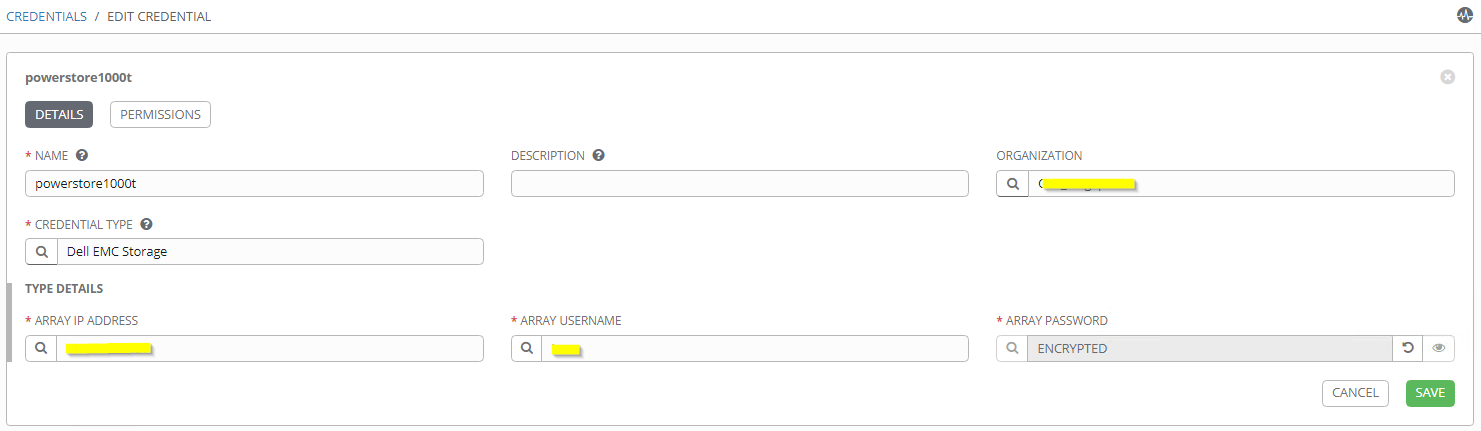
    Once Dell Storage credential type is created then you can add PowerStore array details and credentials using AWX credential manager.

    Ansible AWX – Dell EMC Storage Credential

    After adding PowerStore credential you can use the same in the AWX automation job template creation. Additional variables (like volume names, size, host etc.) can be captured using extra_vars

    Ansible AWX – Job Template Creation

    Additionally you can create survey to capture the required variables and also workflow visualizer to create multi-step breakdown of the automation tasks including but not limited storage automation. Below is the example of breaking down the storage provisioning workflow in the logical steps (like approval, quota management, provisioning, etc.)

    Ansible AWX – Workflow Visualizer

    Hope this helps everyone.

    Update: Please note that the latest version of AWX has moved to Kubernetes (instead of Docker). Please use the below steps to install the PowerStore modules.

    [root@awx ~]# kubectl -n awx exec -it awx-844c574f84-bc4ww -c awx-ee -- /bin/bash
    bash-4.4$ ansible-galaxy collection install dellemc.powerstore -c
    Starting galaxy collection install process
    Process install dependency map
    Starting collection install process
    Downloading https://galaxy.ansible.com/download/dellemc-powerstore-1.6.0.tar.gz to /home/runner/.ansible/tmp/ansible-local-3648wbuk4c_/tmprzm8bse6/dellemc-powerstore-1.6.0-ltamh_71
    Installing 'dellemc.powerstore:1.6.0' to '/home/runner/.ansible/collections/ansible_collections/dellemc/powerstore'
    dellemc.powerstore:1.6.0 was installed successfully
    bash-4.4$
  • Ansible with DellEMC Storage: Part 6 – Prepare Ansible Tower / AWX with Storage Credential

    Ansible with DellEMC Storage: Part 6 – Prepare Ansible Tower / AWX with Storage Credential

    This blog is the continuation of Ansible with DellEMC storage multi-part blog.

    In the last (5th part) of this blog series, we discussed how to install Ansible AWX / Tower in a docker container and Dell EMC Ansible modules inside the Ansible AWX / Tower container.

    In this blog post, we will create a new credential type for Dell EMC storage systems and then add storage credentials in Ansible AWX / Tower.

    So first let’s get started with creating a Credential type for Dell EMC storage array. Login to your Ansible AWX / Tower console. In the navigation pane (on left) click on “Credential Types”. Then click on the green “+” icon on the right to add a new credential type.

    Ansible AWX / Tower – Create New Credential 1

    In the “New Credential Type” creation page enter below details and then click on Save

    • Name – Dell EMC Storage (User Friendly Name)
    • Description – Optional Description
    • Input Configuration – Copy and Paste below text
    fields:
      - id: target
        type: string
        label: Array IP address
      - id: username
        type: string
        label: Array username
      - id: password
        type: string
        label: Array password
        secret: true
    required:
      - target
      - username
      - password
    • Injector Configuration – Copy and Paste below text
    extra_vars:
      password: '{{ password }}'
      target: '{{ target }}'
      username: '{{ username }}'
    
    Ansible AWX / Tower – Create New Credential 2

    Once Credential type is created, click on the “Credentials” in AWX / Tower navigation pane. Then click green “+” button on right to create new Credential.

    Ansible AWX / Tower – Create New Credential 3

    In the “New Credentials” page enter below details.

    • Name – User Friendly Name to identify the storage array. In this example “Production PowerMax”
    • Description – Optional description
    • Organization – You can choose appropriate Organization as per your configuration. Note that Organization can help you to mask these credentials to few users. I have selected Default in my example
    • Credential Type – Choose “Dell EMC Storage”. This is the credential type we have created in earlier step. Credential type which we create earlier will be available on last few pages of the pop-up list. Alternatively you can search the same with “Dell EMC Storage”
    • Type Details
      • Array IP Address – Enter the management IP address of storage array
      • Array Username – Username (I suggest creating separate user for automation)
      • Array Password – Password for the entered username
    Ansible AWX / Tower – Create New Credential 4

    As per your environment you can create multiple credentials, each for one array.

    Ansible AWX / Tower – Create New Credential 5

    Once credentials are created you can now go ahead and create new Ansible AWX / Tower Templates using storage credentials we just created. In the playbook you can mention storage array credentials as variables (username and password). Using these variables you don’t have to mention array credentials as plain text in the playbooks.

    Additionally, you can add other infrastructure / application credentials using the same process.

    I hope this helps everyone. In next post I will take you through creating new Project and Template.

  • REST API and DellEMC Storage Part 3 – Unity

    REST API and DellEMC Storage Part 3 – Unity

    This blog post is 3rd part of REST API with DellEMC Storage blog series.

    • In the first part of this blog series, we discussed what is REST API and different usage options
    • Second part was about managing DellEMC PowerMax storage arrays using REST API

    In this post, we will discuss how you can use manage DellEMC Unity storage using REST API. We will be using the Postman tool during the entire blog series. So let’s get started with automating the DellEMC Unity storage system.

    The DellEMC Unity REST API Background

    DellEMC Unity is of the most user-friendly storage systems. The most common management tools for Unity systems are

    • Unisphere UI (Embedded) – An HTML5 graphical user interface used to manage Dell EMC Unity systems
    • Unisphere Command Line Interface (UEMCLI) – UEMCLI allows a user to perform tasks on the storage system by typing commands instead of using the graphical user interface

    The Dell EMC Unity includes complete REST API support, providing a developer-friendly way to manage Dell EMC Unity systems and automate various tasks.

    Dell EMC Unity’s REST API fully supports all the management tasks that a user can perform in the Unisphere GUI. Dell EMC Unity’s REST API response formats all communication in JSON notation. Users can send REST API requests using their favorite REST API tools to manage Dell EMC Unity systems in their environment. This provides flexibility in management and opens possibilities for more complex operations.

    DellEMC Unity Management Options

    Assessing DellEMC Unity’s REST API

    Once a Unity system is up and running, users can navigate to the following web addresses to get access to the REST API documentation:

    REST API Programmer’s Guide – https://{{unisphere_management_address}}/apidocs/programmers-guide/index.html

    REST API Reference Guide – https://{{unisphere_management_address}}/apidocs/index.html

    DellEMC Unity’s REST API is available via Unisphere running on the array via the following Base URL.

    https://{{unisphere_management_address}}/api

    • {{unisphere_management_address}} – Replace with IP Unisphere IP address or hostname

    Supported DellEMC Unity REST API Operations

    DellEMC Unity’s REST API supports the following types of REST calls.

    • GET – Get information on objects. For example – Get Unity storage system’s details
    • POST – Create an Object. For example – Create new LUN/s
    • PUT – Making changes to an objects. For example – Change size of the existing LUN
    • DELETE – Remove an object. For example – Delete existing LUN/s

    Usually the REST client (like Postman) can be used to help figure out what REST calls you want to run.

    Building your REST API calls

    Now let’s get started with creating REST API calls. In this example we will create sample REST API call to list all the available storage pools.

    Before we get started make sure you’ve Postman installed and Unisphere is reachable.

    • Open Postman and click on New. Under new drop-down, select Request
    DellEMC Unity REST API – Postman tool GUI – 1
    • In New Request pop-up enter Request name, Description (optional) and Name of the Collection. Then click on Save.
    DellEMC Unity REST API – Postman tool GUI – 2
    • Click on the request type drop-down and select GET.
      • Please note that we are selecting GET because is this example we are creating sample REST API call to list all the available storage pools.
      • This option will be different based on type of REST API operation
    DellEMC Unity REST API – Postman tool GUI – 3
    • Enter below Request URL
      • 1.1.1.1 – Replace with Unisphere IP address/hostname

    https://1.1.1.1/api/types/pool/instances

    DellEMC Unity REST API – Postman tool GUI – 4
    • Click on the Authorization. Enter Unisphere Username and Password.
    DellEMC Unity REST API – Postman tool GUI – 5
    • Note that Unity REST API GET request needs below 3 headers. Click on Headers and enter below header details as shown in the screenshot. Then click Send
      • Accept – application/json
      • Content-type – application/json
      • X-EMC-REST-CLIENT – true
    DellEMC Unity REST API – Postman tool GUI – 5
    • In the Postman Response section you’ll see REST API response. In this case you’ll see list of all the storage pools in Unity array.
    DellEMC Unity REST API – Postman tool GUI – 6

    Additionally please note that POST/PUT/DELETE requests need one additional Header – EMC-CSRF-TOKEN. This token is generated using GET request.

    So, let’s create one POST request for creating new LUN.

    • Follow above-listed GET request steps. Click on Headers under GET Response. Copy the EMC-CSRF-TOKEN from the Headers
    DellEMC Unity REST API – Postman tool GUI – 7
    • Now click on New and Under new drop-down, select Request (screenshot in GET request steps)
    • In New Request pop-up enter Request name, Description (optional) and Name of the Collection. Then click on Save. (screenshot in GET request steps)
    • Click on the request type drop-down and select POST.
      • Please note that we are selecting POST because is this second example we are creating REST API call to create new LUN.
    • Click on the Authorization. Enter Unisphere Username and Password.
    • Under Params enter below details.
      • Name – Name of the LUN
      • Pool – Storage Pool in which LUN will be created
      • Size – LUN size
    DellEMC Unity REST API – Postman tool GUI – 7
    • Click on Headers and enter below header details as shown in the screenshot. Then click Send
      • Accept – application/json
      • Content-type – application/json
      • X-EMC-REST-CLIENT – true
      • EMC-CSRF-TOKEN – Copied from GET response
    DellEMC Unity REST API – Postman tool GUI – 8

    Dell EMC and REST API – Way Forward

    I hope this clarifies many basics for getting started with REST API and DellEMC Unity storage. You might also have understood that creating creating valid URLs is very important aspect of using REST API. Having this in mind we have created ready Postman collection for DellEMC Unity storage. Here’s the GitHub link to the repository. Feel free to download and share.

    Below are the additional resources available for taking REST API usage to next level.

    I hope this post will get you started with your Dell EMC Unity automation journey.

  • Microsoft SQL DWH using DellEMC iCDM

    Recently I got engaged with one of our customer who was trying to implement data warehouse using the Microsoft SQL 2017. But they were not able to implement the same into the production environment even after successful POC and testing. When we got engaged with customer DBA teams we used DellEMC’s iCDM functionality (with XtremIO X2 system) in some unique way to help them not just solve their problem but exceeding business SLA expectations. This blog covers the details around problem and solution along with learning.

    Problem Statement

    Customer has several mission-critical MS SQL 2016 databases which are running in 24×7 operation. These databases are supporting their business critical OLTP application.

    Customer’s planned DWH approach

    Business teams were pushing application and DBA teams to create singular reporting platform which will create reporting on data from multiple MSSQL source databases.

    For this project DBA teams built MS SQL 2017 platform which will consolidate data from 3 source MS SQL databases. They created the test setup for feature testing before production roll-out, which worked as per their expectations. But when they implemented this feature in production DBA team realized that this is generating massive load on their source databases and causing performance issues for their business applications, which was completely unacceptable to business teams.

    This forced DBA teams to stop fetching data from the network and restore the data from last backup instead. This was used as workaround because this meant that data in reporting server was more than 30 hours old, which was making reporting irrelevant.

    DellEMC Solution

    When DellEMC team got involved we started with collecting DB environment data collection and business expectation understanding. Once we understood the pain points and business requirement we mentioned to DBAs that traditional way of data management techniques won’t help them. We also mentioned that since they are exiting DellEMC customer they already have the solution with them, which they never implemented.

    Every DellEMC All Flash storage solutions includes bundled copy data management software called Appsync.

    On high level AppSync allows application and database administrators to create application workflows. These workflows allows them to create on demand or scheduled protection or re-purpose copies of databases. We also mentioned that using this software you can create your copies of source MS SQL 2016 DB copies and mount it to target MS SQL 2017 DB server, scheduled or on-demand. These workflows are based on DellEMC storage in back-end and hence can be executed during even the busiest times.

    As usual customer DBA teams didn’t believe us and that’s where it comes to next section of this blog – Demonstration! 🙂

    Demonstration of the Appsync

    To demonstrate the functionality of DellEMC iCDM we installed the Appsync server on of the Windows server VM in customer environment. Below is the high level architecture

    DellEMC’s proposed solution approach for DWH project

    Once Appsync was installed we configured the same to communicate with source and target SQL servers and also DellEMC XtremIO storage. This allows Appsync to discover running databases and create the end to end database mapping.

    Post initial configuration we created the SQL re-purpose copy schedule to create the MS SQL database copy every 6 hours. This schedule was then applied to all the 3 source databases.

    Once the copy of multiple source database was created we used Appsync to mount the same into target MSSQL 2017 server. In our testing we mounted 3 source copies on single target MSSQL 2017 instance. Entire mounting operation completed within couple of minutes. This process allowed customer to save multiple days and help achieve business SLA.

    Apart from solving their most critical problem in hand this solution helped them solve couple of major production issues

    • Database RPO – We reduced production DB RPO to 2 hours instead of 30+ hours
    • Agent-free backup – iCDM helped customer to mount DB production copy on off-host backup server. This helped them completely eliminate backup load from production server.

    If you’re facing similar challenges in your DB environment then highly recommended to use iCDM approach instead of traditional methods.

    I have created another blog post to elaborate more on iCDM and advantages of the same. You can go through the same using below link.

    Databases and Integrated Copy Data Management (iCDM) with DellEMC

    Below are few reference documents for further reading on iCDM

    Dell EMC AppSync Datasheet

    Best Practices for running SQL Server on DellEMC XtremIO X2

  • Databases and Integrated Copy Data Management (iCDM) with DellEMC

    Databases and Integrated Copy Data Management (iCDM) with DellEMC

    In this blog we will talk about how DellEMC can help you to store you databases smartly and efficiently.

    But firstly let’s talks about CDM and why it’s important. In the world of DBAs everyone’s always talking about performance, million IOPS and double/triple digit bandwidth with lowest possible latency. But the biggest question is whether performance is the only solution to all problems?

    For example in one of the survey members of Independent Oracle User Group (IOUG) were asked what DB activities are taking up most of the time each week?

    You can also see that performance troubleshooting is rated as second most time consuming activity, but the question is how to solve it. One of the ways people try to solve this is by upgrading their database stack. In below AWR example snippets you can see that how one of the customer has solved their performance issue by moving to DellEMC solution. Earlier they were having 92% User I/O wait time, which also means 92% of the time DB is waiting for database subsystem to respond.

    But as I have mentioned earlier upgrading the stack will always give the benefits but it does not solve all the problems. Which also means most customer apply their older process and best practices to new stack which often is the culprit of the new problems. (another blog on this later)

    But the real problem is what do you do with those databases and data? Most businesses today are trying to keep more data online. This allows them to understand the patterns and anomalies using AI/ML, which helps them taking right decisions or course correction. All this is driven using copy data, which means you need actual source production database instances to analyze, test, develop etc. Below picture is the great depiction of multiple use cases which needs source database.

    Now think of all those use cases and start thinking of the approach DBAs will take to manage the show. Usually there’s no standard way of managing this. Processes to achieve the end goal depends on the experience of the DBA and also availability of the resources.

    IDC has done some work on this problem area to understand the gravity of the situation and uncover some facts. IDC polled over 700 customers for this survey. Some of the interesting facts are –

    Tools used for producing secondary data copies

    As per the IDC survey most popular way is to rely on backup software but interestingly 53% of the respondents said that they use custom-written scripts to manage the CDM show.

    How long does it take to refresh copies?

    To which 62% of organizations, copies take ½ day or more to create (up to days). And this is very real as I have personally worked with one of my customer who used to take 2 ½ days to create single secondary copy starting weekend, on which 60 member developer team used to work.

    At which frequency are copies of dev/test or analytics refreshed?

    Copies are refreshed every few days by 32% of organizations, and weekly by 42%.

    One of the most striking detail in this IDC document is – How many Database instances do you currently have in production in your data center environment? 77% customers said that they have more that 200 database instances and 82% said that they have more than 10 copies per database.

    In simplified words this problem looks like the iceberg. People only count their production/primary database instances but secondary/re-purpose copies are usually taken for granted. If you do the quick math on IDC numbers you’ll quickly realize that this is one of the biggest operational issue in database environments.

    For Example –

    1 Production DB x 250GB DB size x 346 DB Instances = 87TB of Production data

    14 Copies of each Production DB x 250GB DB size x 346 DB Instances = 1.2PB of Copy Sprawl

    Now that we understand what copy data management issue is. Now let’s understand how DellEMC can help in simplifying the CDM problem

    Integrated Copy Data Management (iCDM)

    As per my personal experience below snippet is the best way to understand how iCDM functions. Providing self service to application/database teams with application integration. iCDM leverages advanced copy/snapshot function of the DellEMC storage system, which also means you need DellEMC storage in order to use iCDM 🙂

    To simplify things even further – in most environments you follow 3 steps process for database copy creation.

    1. Identify source database
    2. Prepare database
    3. Prepare instance

    Details for these 3 steps are as below but on high level it lacks automation, it’s (very) time consuming and most importantly it lacks automation.

    But with iCDM you can change this legacy process and adapt to something which is more modern and fits with today’s cloud native world. You can simply

    1. Install and Configure DellEMC Appsync (one time)
    2. Create and Customize workflows as per your environment
    3. Consume (repeat and scale)

    Conclusion

    DellEMC iCDM can be sumarised as

    1. Simple – Automated Copy Data Management without the need of customized scripts
    2. Intelligent – Tight integration with entire application stack – applications –> hosts –> virtualization –> DellEMC Storage with Replication
    3. Friction-less – Database and IT team are on the same page with transparent copy workflow.

    Below are the few links to the DellEMC iCDM collateral.

    Dell EMC’s integrated copy data management (iCDM) webinar

    DellEMC Appsync Datasheet

    DellEMC Appsync Software Download Link

    This blog is part of multi-blog series. Next couple of blogs I will try to explain usage of iCDM for multiple database CDM use cases.

  • What is Container Storage Integration (CSI) and Why now?

    What is Container Storage Integration (CSI) and Why now?

    Containers are everywhere and they are here to stay. They are great level-playing ground to break the infrastructure dependency and allow developers to release their code to any environment.

    Containers also help customers to operate at greater scales with ability to quickly scaling up and down, patching with disruptions, withstand infrastructure component failures, moving easily from on-premises to public clouds, etc.

    As per the survey from sysdig lifespan of containers and container images is also very short.

    At this stage of the popularity of containers there are two thought processes in the container fan club – Persistent or Non-Persistent Containers

    If you explore docker hub top downloads you’ll notice that 7/10 top downloads require data persistence (snippet below)

    Let’s understand persistent containers in more details.

    Prior to Container Storage Integration CSI, Kubernetes provided in-tree (ie as part of the core code) plugins to support volumes but that posed a problem in that storage vendors had to align to the Kubernetes release process to fix a bug or to release new features among other problems. This also means every storage vendor had their own process to present volumes to Kubernetes.

    This heterogeneous non-standard integrations were one of the biggest reasons why CSI was created. CSI was developed as a standard for exposing block and file storage storage systems to containerized workloads on Container Orchestration Systems (COs) like Kubernetes. With the adoption of the Container Storage Interface (CSI), the Kubernetes volume layer becomes truly extensible. Using CSI, third-party storage providers like DellEMC can write and deploy plugins exposing new storage systems in Kubernetes without ever having to touch the core Kubernetes code. This gives Kubernetes users more options for storage and makes the system more secure and reliable. Also this approach makes sure that every vendor has standard way of interacting with Kubernetes.

    With CSI Kubernetes supports Persistent Volumes (PV). PVs life-cycle independent of any Kubernetes POD. Kubernetes supports 2 ways to provision PVs

    • Static – Admin Pre-provisions / creates a number of PVs
    Static PV provisioning
    • Dynamic – Cluster “automatically” provisions a volume
    Dynamic PV provisioning

    No matter which is the method of PV provisioning it can support varying properties such as performance, QOS, backup policies, etc. These properties are defined by StorageClass

    There are 3 access modes which are supported on PV. Storage volume cannot be mounted simultaneously in more than one access mode.

    1. ReadWriteOnce (RWO) – Volume can be mounted as ready-write by a single node
    2. ReadOnlyMany (ROX) – Volume can be mounted read-only by many nodes
    3. ReadWriteMany (RWX) – Volume can be mounted as read-write by many nodes

    Below is the summary of persistence

    DellEMC CSI Support

    DellEMC understands that that Enterprise applications require persistent storage. As of now (Nov 2019) DellEMC supports CSI plugins for below storage arrays

    Below are few documents around DellEMC CSI integration

    More blogs on CSI coming up 🙂

  • Monitoring your VMware Environment From Anywhere Using DellEMC CloudIQ

    Monitoring your VMware Environment From Anywhere Using DellEMC CloudIQ

    In daily life of an administrator worst day is when you’ve to co-relate logs across the stack for performance troubleshooting or when you need to troubleshoot an issue which is not consistent. Usually for such issues you’ll need to enable continuous log collection and hope that issue will reappear during the log collection time. Phew!

    But gone are those days where you were reactive in troubleshooting, now with CloudIQ you can be proactive.

    CloudIQ is SaaS based monitoring application which is available to all DellEMC customers without any additional investment.

    Though CloudIQ allows customers to have centralized monitoring of DellEMC storage products, proactive health score and predictive analytics, but this blog is about VMware monitoring with CloudIQ. With latest update of CloudIQ now it supports monitoring of entire VMware landscape (along with storage and Connectrix).

    As I have already mentioned CloudIQ has integration with VMware for end-to-end monitoring for the virtualization environments. For enabling the CloudIQ to collect and report VMware data you need to download the CloudIQ collector, which can be downloaded directly from the CloudIQ portal (details below)

    Once the collector is downloaded follow the steps (step 3 in above exhibit) listed on the CloudIQ collector download page.

    Note that single instance of CloudIQ collector supports collecting data for upto 60000 virtual machines. Once collector is enabled it will take ~24 hours to populate the data on CloudIQ portal.

    There are many details available on CloudIQ and more enhancements are getting added very frequently. You can refer to this CloudIQ whitepaper which has details around CloudIQ overview. In this blog post is to highlight few CloudIQ features which I personally like.

    Storage LUN to Datastore to VM Mapping

    From the CloudIQ you can see the list of all the virtual machines which running on particular datastore. This is great asset as you no more have to login to vCenter console for this.

    Storage LUN –> VMware Datastore –> VM Mapping

    Co-relate VM Performance With Anomaly Detection

    You can view all required performance charts for virtual machine in single view. Additionally CloudIQ performance charts will highlight any performance anomalies during the last 24 hours. In below example you can see that for selected virtual machine storage response time was suddenly increased and went back to normal.

    Co-relate VM Performance With Anomaly Detection

    End to End Map

    Customers who have tried to deploy monitoring tools understand that it’s very difficult to get the application/virtual machine footprint map in the data center. Usually this is very useful if you want to understand all the dependent infrastructure components which you application touches in the virtualization stack. CloudIQ gives you out of box functionality to provide virtual machine end-to-end map — from Virtual machine to storage volumes/LUNs

    These are the top 3 VMware monitoring features which I personally like. Apart from this there are many features including but not limited to

    • Tracking configuration changes per VM level
    • Storage path details for each datastore

    Also I would like to mention that CloudIQ can be accessed using

    • Web view using any device having connectivity to CloudIQ
    • Mobile application – Supported on Apple and Android devices